
It remembers for you.
One private box for everything you would rather not forget, strongly encrypted on your own device and filled in wherever you need it: Windows, Android, and your browser.
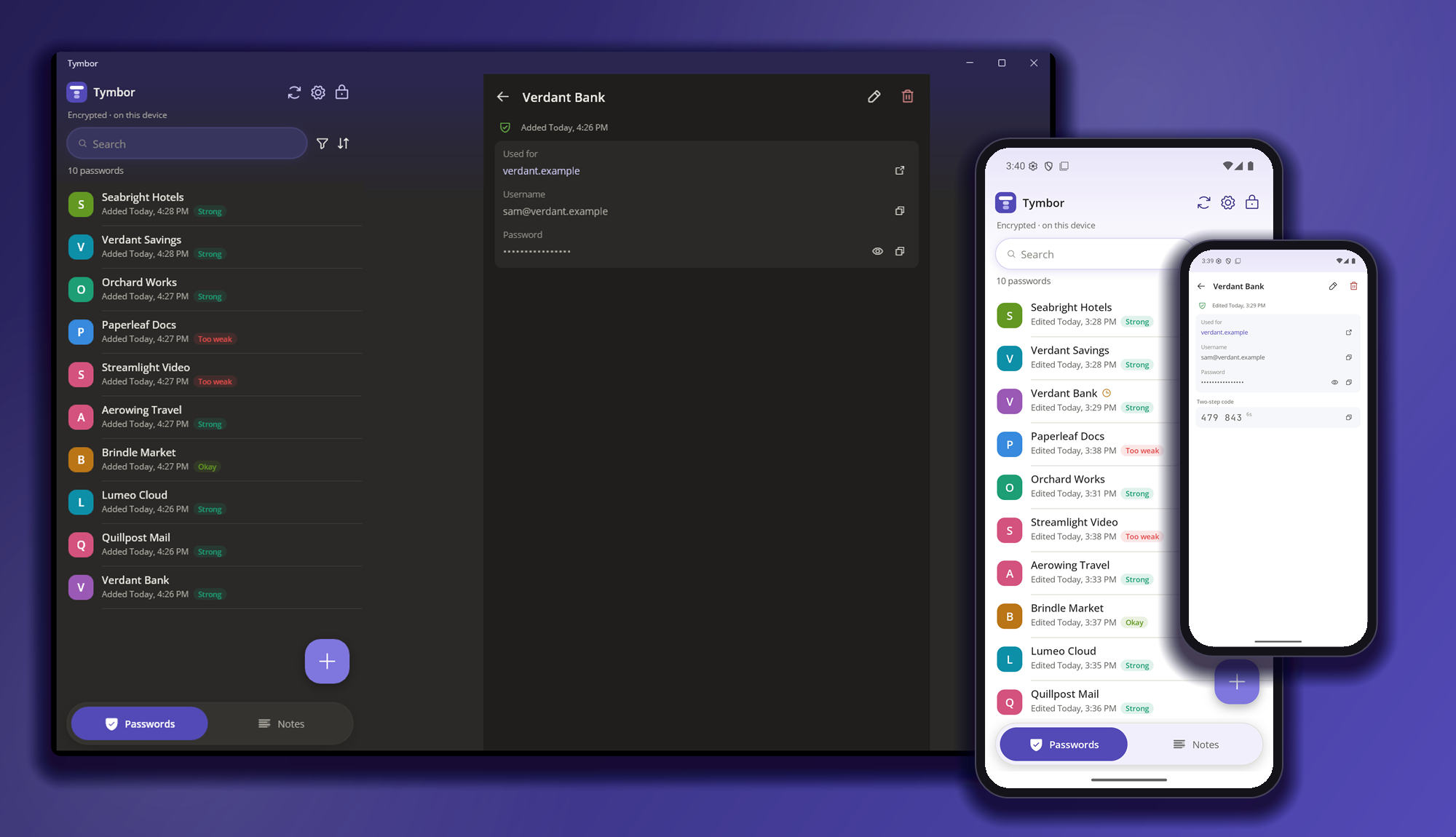
Browsing that is faster, and safer.
Signs you in, once it knows it is you
When you browse, Tymbor finds your login and fills it in for you after checking that it really is you. No hunting, no retyping, and sign-ins become quick and effortless.
Strong passwords you never have to remember
Tymbor helps you set long, strong, different passwords, then remembers them and brings them back for you whenever you need them.
Every device, in step
Sync through your own cloud and every device you use has all your items, fully secured and encrypted, and only you can open them.
Tymbor in about a minute.
Running today on Windows, Android and in your browser.
Every screenshot and recording on this site comes straight from the working apps. Tap any picture to see it full size.
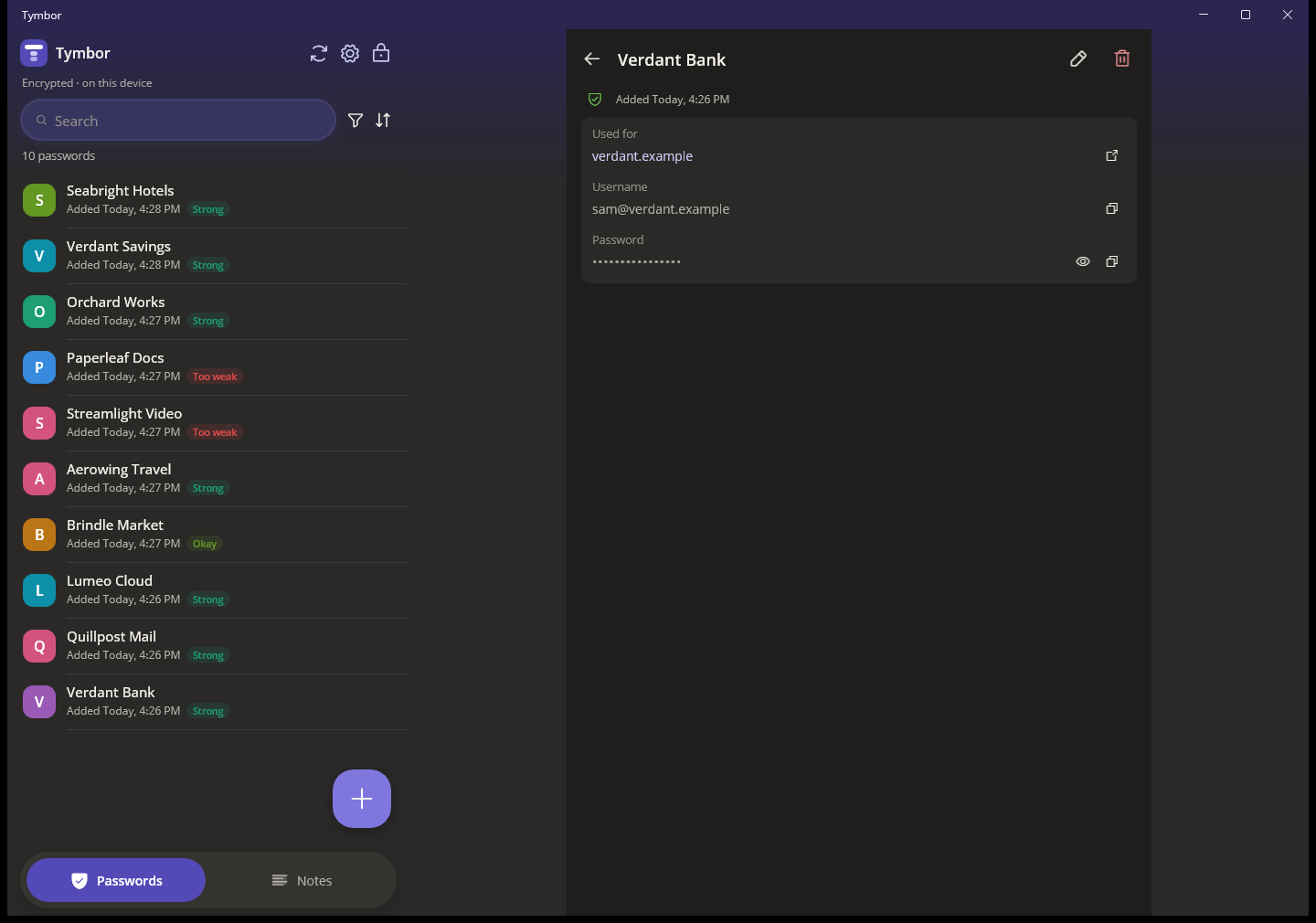
On Windows
A native desktop app with its own installer.
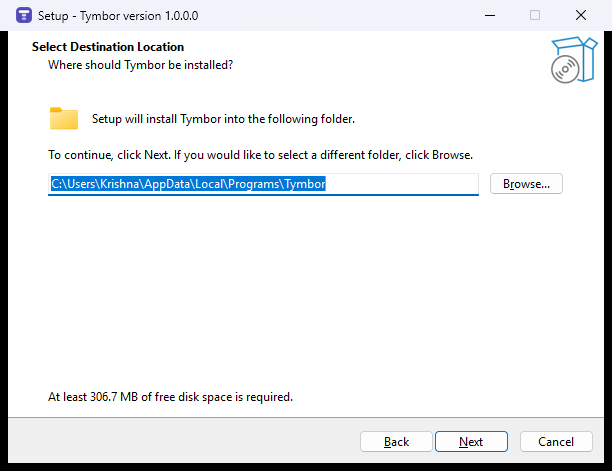
A real installer
Installs for your own Windows account, with no administrator needed.
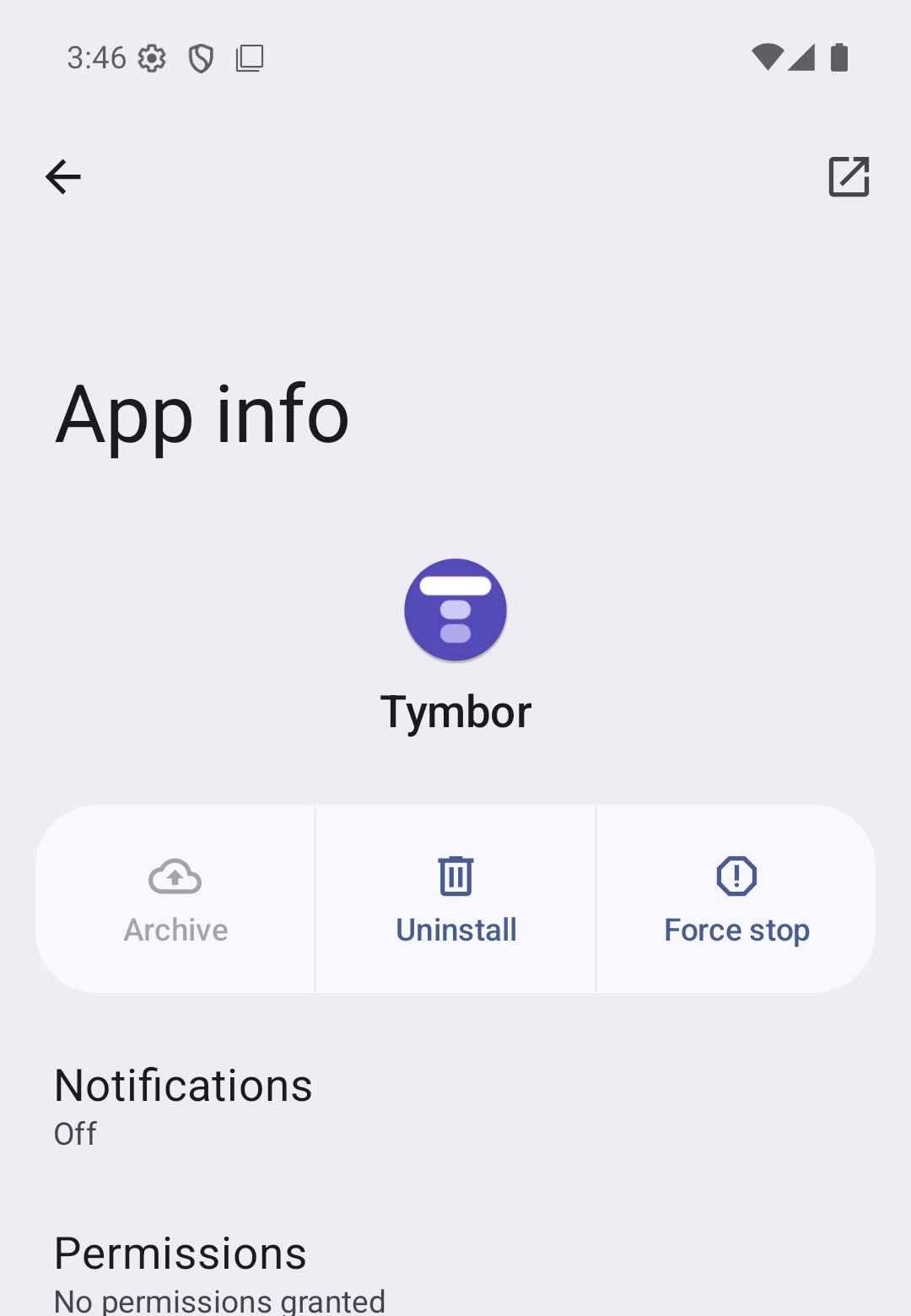
On Android
Installed like any other app on the phone.
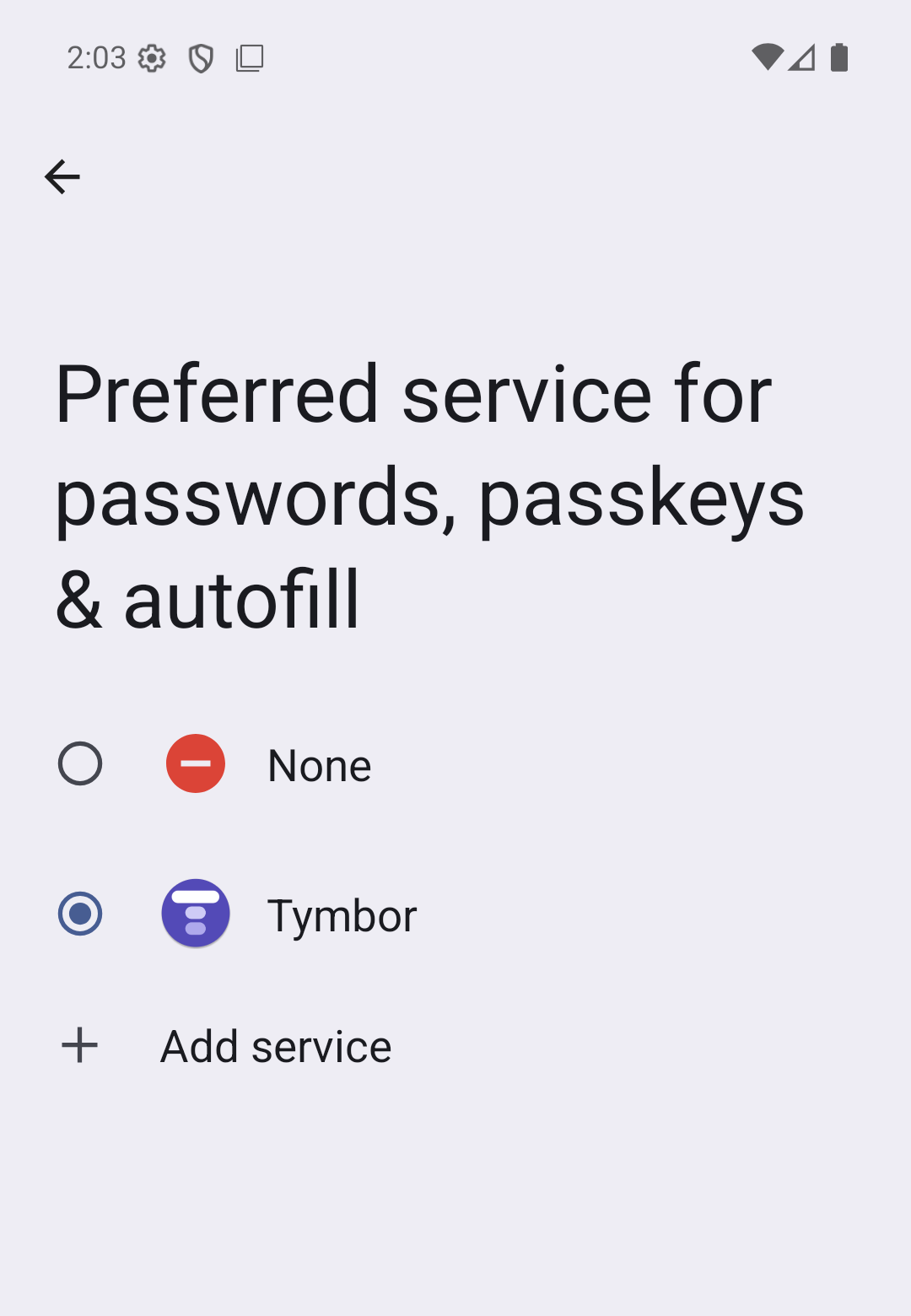
Known to Android
Listed by Android itself as a password and autofill service.
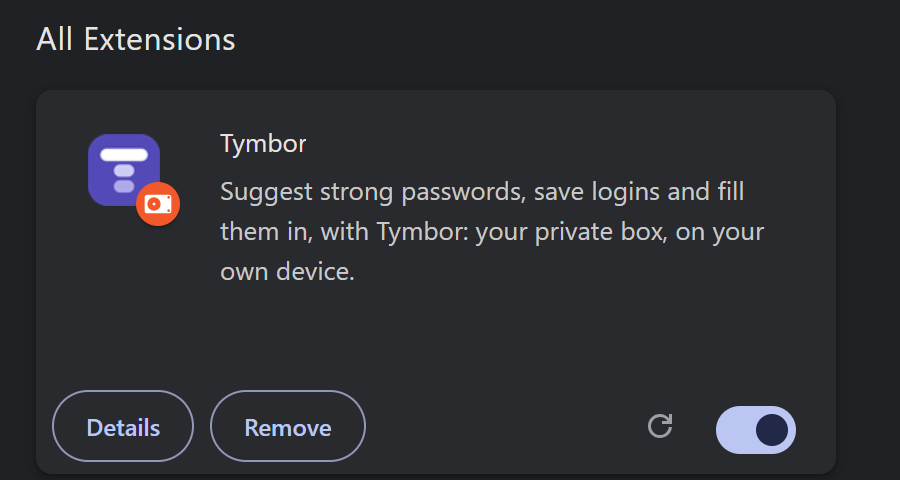
In your browser
Installed and switched on as a real extension.
Most password managers ask you to trust someone else with everything.
That is fine until it is not. Here is what tends to go wrong, and what Tymbor does differently.
What goes wrong elsewhere
What is different about Tymbor
Other tools do some of this. Tymbor puts it together, without servers to run or accounts to manage.
One key for everything, or a key for each item. Your choice.
Everything you save is encrypted with AES‑256, strong encryption trusted worldwide, before it touches the disk. Keep it simple with one main key that opens everything, or give any item, or every item, a unique key of its own that it asks for every time.
Your choice: one key for all your items, or a unique key per item.
Make a strong password. Right here.
This runs in your browser with your device's own secure randomness. Nothing is sent anywhere and nothing is saved.
One vault. Four ways in.
Desktop
The Windows app, wide and quick, with the keyboard.
2Mobile
The same vault on your Android phone.
3Web extension
Fill and save logins in Chrome, Brave and Edge.
4Android autofill
Fill in any app or browser on your phone.
Made for the big screen.
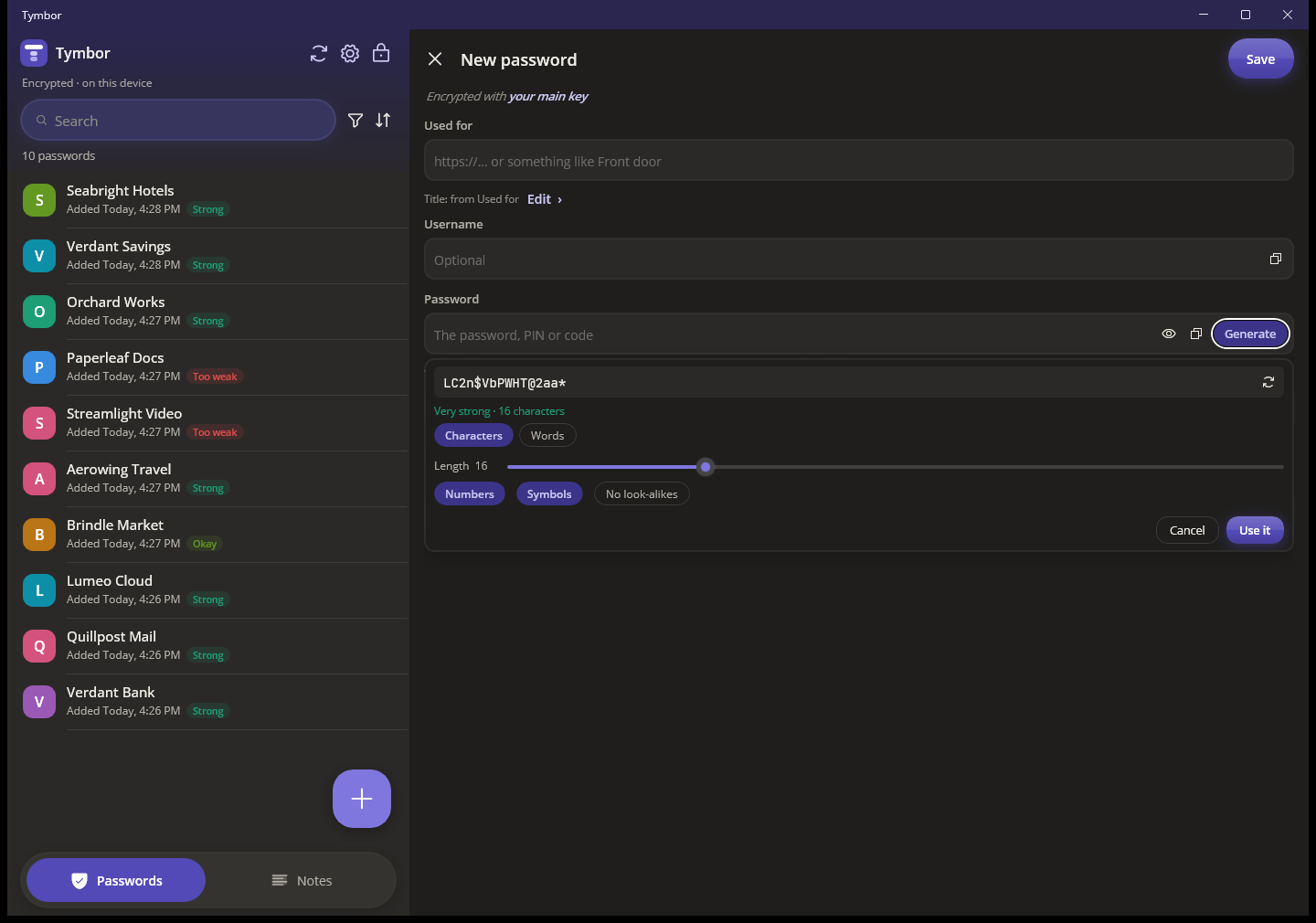
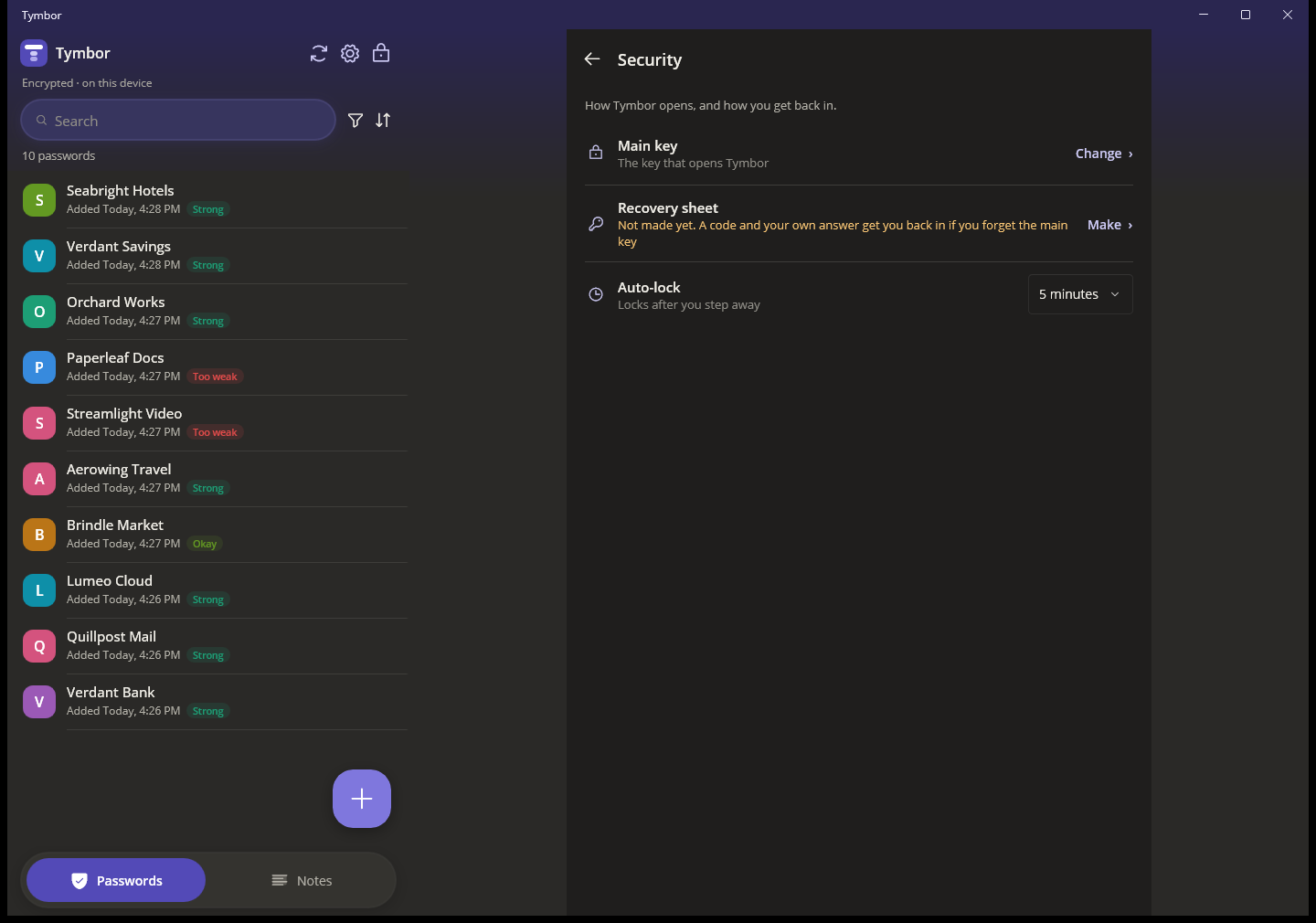
Windows gets a roomy two-pane view: your list on the left, the item you opened on the right. Everything you can do on the phone, from a keyboard and a mouse.
- Search as you type, filter, sort and pin
- Open with Windows Hello, lock with one click
- Make strong passwords as you add a login
- Drafts, Trash and Undo, so a slip costs nothing
- Send your vault to your phone across your Wi-Fi
All of it, in your pocket.
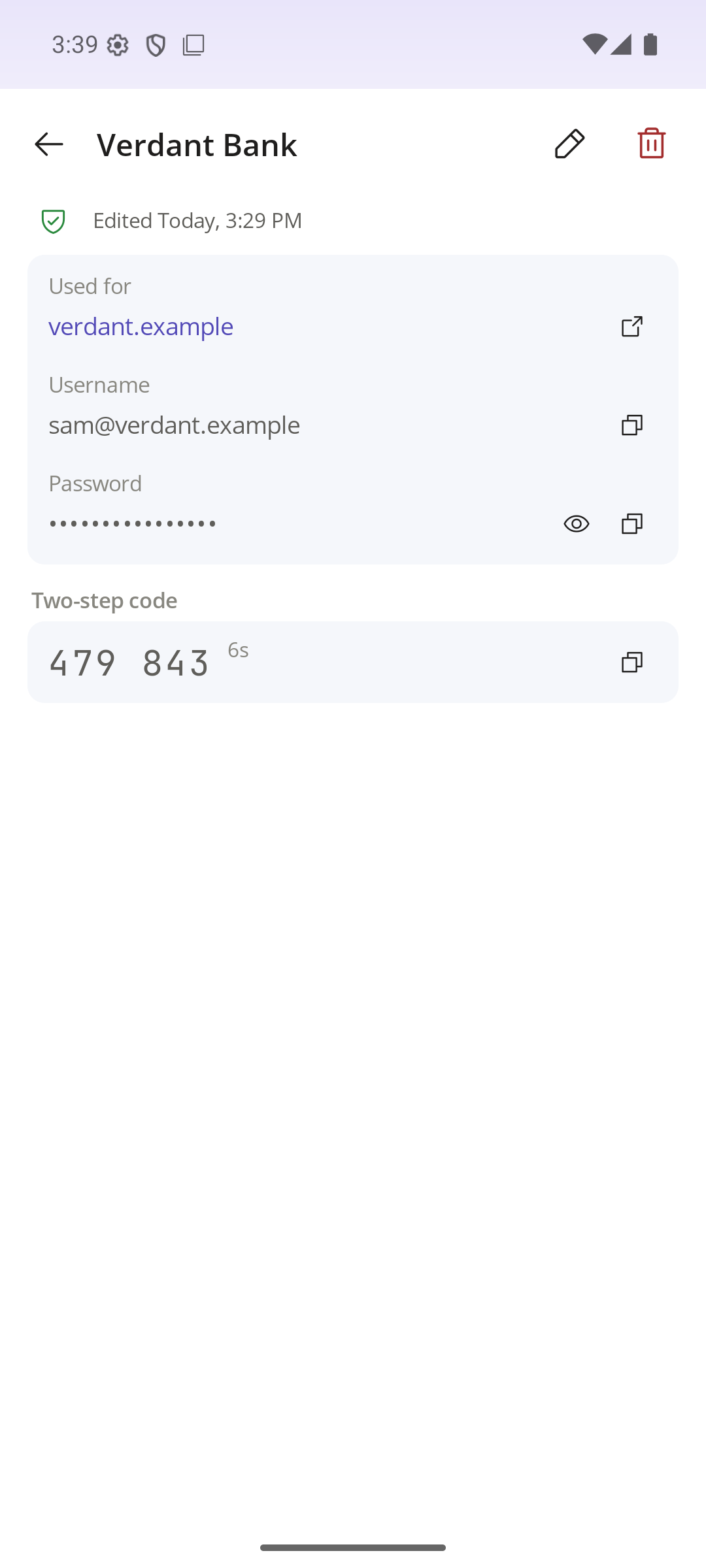
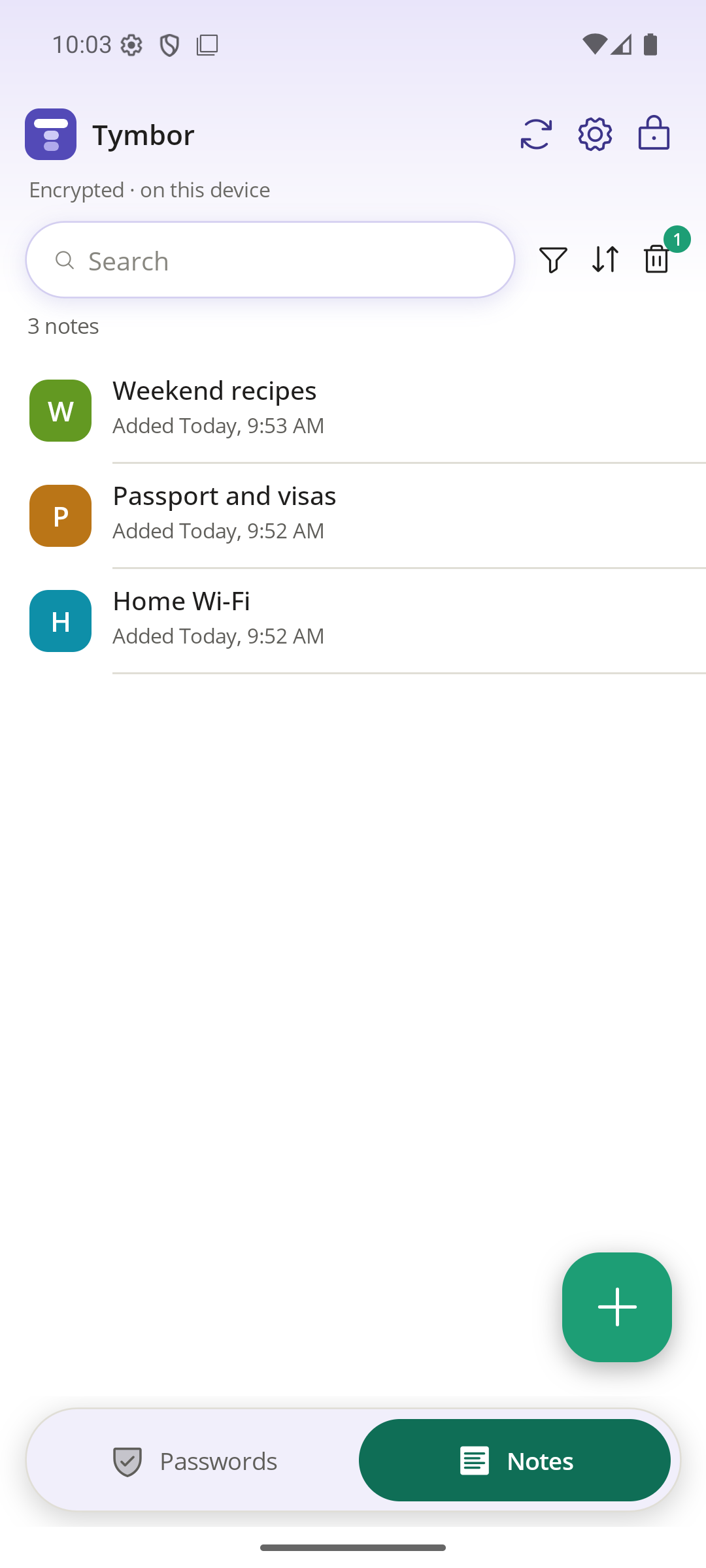
The Android app has the whole vault: passwords, notes, two-step codes, the generator, import and backup. Add something on your PC and it is on your phone through your own cloud or straight over Wi-Fi.
- Fingerprint unlock
- Copy a username or password with one tap
- Two-step codes with a live countdown
- Notes with pictures, files, voice notes and dictation
- Works fully offline
Fills in as you browse. Asks before it saves.
The Tymbor extension for Chrome, Brave and Edge puts a small button in password boxes. Click it, pick your login, and it is filled in. On a sign-up page it can suggest a strong password and keep it for you.
- Click the Tymbor buttonIt sits inside the password box.
- Pick a saved loginOr ask for a strong password on a sign-up page.
- DoneNew logins are offered to Tymbor when you sign up.
Tap a login box, in any app. Tymbor fills it.
Choose Tymbor as your Android autofill service and it works in your browser and in apps. It offers your saved login right where you need it, makes a strong password on sign-up, and offers to save new logins.
- Tap a login boxTymbor offers "Fill with Tymbor".
- Check the accountYou see which login before anything is filled.
- Filled inMake a strong password on a sign-up page, and Android asks whether to save it.
Everything you would hope for
Passwords
Save every login with the site it belongs to. Copy with one tap and Tymbor clears the clipboard for you a little later.
Strong passwords on demand
A random password or an easy-to-type phrase of words. Pick the length, numbers and symbols, and skip look-alike characters. A strength rating shows as you type.
Two-step codes
Keep the code generator for a login beside its password. The code and its countdown are one tap away, no second app.
Private notes
Write notes with bold, italics, lists, checklists and links. Pin the important ones to the top, and give any note a key of its own when it needs extra protection.
Pictures, files and voice notes
Add a picture or a document to a note, record up to three voice notes, or just talk and let it type for you. Dictation happens on your device, so your voice never leaves it. PDFs, photos, text files and Word, Excel and PowerPoint files up to 10 MB are kept encrypted with the note, and Tymbor turns away unsafe file types, so a program disguised as a PDF is refused.
Search, filters, labels
Find anything in a moment. Sort and filter by what you need, and group items with labels you make.
Nothing lost mid-way
Unsaved work is kept as a draft for seven days. Deleted items wait in Trash, with Undo, until you decide.
Bring your logins with you
Import from Chrome, Firefox, Bitwarden, LastPass and others. Tymbor shows what it found before it adds anything, and skips what you already have.
Your devices, in step
Sync through your own Google Drive, with only the encrypted vault stored there. Or send your vault to another device across your Wi-Fi, with nothing going through the internet.
Backups you control
Save an encrypted backup file whenever you like and keep it wherever you like. Earlier copies are also kept on the device.
A way back in
Make a recovery sheet: a question only you can answer, and a code. Together they get you back in if you forget your main key.
Locked unless it is you
Tymbor locks itself when you step away. Open it with Windows Hello or your fingerprint, so you are not typing your main key all day.
Fills in for you
Tymbor fills in logins in your browser through the extension and in your apps through Android autofill. It offers a login only on the exact site it belongs to.
Works without a connection
Your vault lives on your device, so Tymbor opens and works with no internet. Sync happens only when you turn it on.
Looks the way you like
Light or dark, in several colour palettes. Built to work with a screen reader and the keyboard.
The same Tymbor on desktop and mobile
Everything works on both. Add something on one and it is on the other.
| Desktop | Mobile | |
|---|---|---|
| Passwords, notes and two-step codes | ✓ | ✓ |
| Notes with pictures, files and voice notes | ✓ | ✓ |
| Password generator and strength rating | ✓ | ✓ |
| Search, filters, drafts, Trash and Undo | ✓ | ✓ |
| Import, backup file and recovery sheet | ✓ | ✓ |
| Sync through your own Google Drive | ✓ | ✓ |
| Send your vault over Wi-Fi | ✓ | ✓ |
| Quick unlock | Windows Hello | Fingerprint |
| Fills in and saves logins | Browser extension (Chrome, Brave, Edge) | Android autofill (apps and browsers) |
Simple plans
Beta
Everything, free
While Tymbor is in beta, every feature is open with no limits.
Free
Up to 25 items
Everything you already have stays fully usable, always.
Pro
Unlimited items
For people who keep a lot in Tymbor.
Questions
Can you see my passwords?
No. They are encrypted on your device with a key made from your main key. We never receive the key or your data.
What if I forget my main key?
Nobody can reset it, because nobody has it. Make a recovery sheet in Settings: a question only you can answer, and a code. Together they get you back in.
Where is my data stored?
On your device, encrypted. If you turn on sync, an encrypted copy also goes to your own Google Drive. You can also keep a backup file wherever you like.
Which browsers work?
Chrome, Brave and Edge on Windows, through the Tymbor extension. On Android, autofill works in browsers and apps.
Is it free?
Yes. While Tymbor is in beta, everything is free with no limits. After the beta it stays free for up to 25 items, with a paid plan for people who need more.
What is next?
Tymbor is in beta and still growing. The desktop app, the Android app, the browser extension and Android autofill all work today, with more to come. An independent security review is part of what comes next, so keep your own backups for now. See the Terms.
Remember less. Be safer.
Tymbor is in beta now.